Alerts and thresholds reference
How threshold alerts, block notices, and the hard stop percentage work in AI Spend Governance — including exactly when emails send and when they don't.
Updated
This page is the precise behavior reference for the alerting and enforcement settings under Axtolab → AI Spend Governance. If an email did or didn’t arrive and you want to know why, the answer is here.
The settings
| Setting | What it does | Default |
|---|---|---|
| Sitewide monthly budget ($) | Budget for the whole site’s estimated AI spend per calendar month | unset |
| Default per-plugin budget ($) | Budget applied to any plugin without its own row | unset |
| Per-plugin budgets | Individual monthly budgets per plugin (rows pre-filled from what the Monitor has seen) | unset |
| Warning thresholds (%) | Comma-separated list, e.g. 50, 75, 100 — each sends one alert email when crossed | 50, 75, 100 |
| Alert email | Where alerts and block notices go | admin email |
| Hard stop | When on, blocks AI calls once a budget is reached | off |
| Hard stop at (%) | The percentage of budget at which blocking starts, 1–100 | 100 |
| Kill switch | Blocks all AI calls immediately, regardless of budgets | off |
Budgets always run on the calendar month, using the Monitor’s estimated month-to-date spend. Everything resets on the 1st.
When threshold alerts send
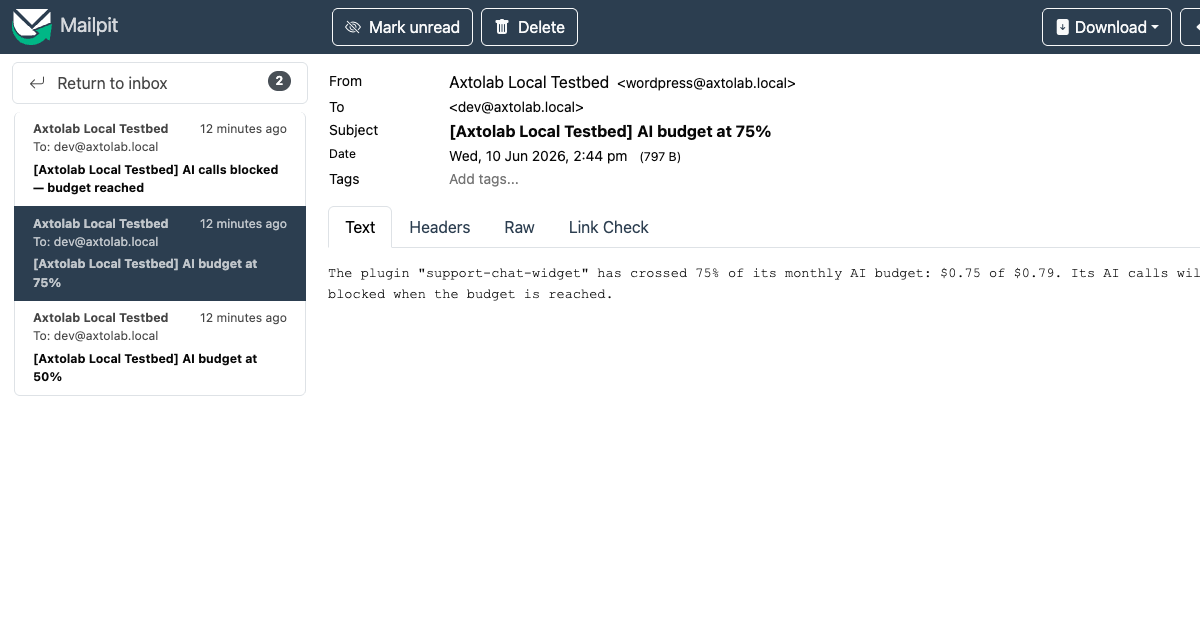
- One email per scope, per threshold, per month. Crossing 50% of the sitewide budget sends one email; it will not repeat this month even if spend hovers around 50%. Crossing 75% later sends the next one.
- “Scope” means the sitewide budget and each plugin budget independently. A plugin crossing its own 50% and the site crossing its 50% are two separate alerts.
- Alerts fire whether or not the hard stop is enabled — alerts-only mode (budgets set, hard stop off) is fully supported and is the recommended first week of a rollout.
- Throttling resets at the month boundary automatically.
When block notices send
With the hard stop on and a budget reached, calls are blocked silently and logged; the alert email gets a block notice at most once per day per scope so an incident doesn’t flood the inbox. Kill-switch blocks send their own distinctly-worded notice so you can’t mistake a deliberate suspension for a budget event.
How the hard stop percentage interacts
Hard stop at % applies to every budget. At 100% (default), blocking starts when a budget is fully spent. At, say, 80%, blocking starts at 80% of each budget — useful when you want headroom for must-run calls or distrust list-price estimates. Warning thresholds above the hard-stop percentage will never fire, since spend can’t get there.
Evaluation order
For each AI call: kill switch → sitewide budget → that plugin’s budget (its own row, else the default per-plugin budget). The first limit reached blocks the call. Blocked calls are recorded in the Monitor dashboard as blocked rows with the scope that triggered them, so the audit trail shows what was stopped and why.
Sub-cent amounts
Alert emails show four decimal places below $0.01, so early-month alerts on small budgets read “$0.0042”, not a misleading “$0.00”.
Worked example
Site budget $50, plugin ai-copywriter budget $10, thresholds 50, 75, 100, hard stop on at 100%:
ai-copywriterhits $5 → one email (“ai-copywriter at 50% of its $10 budget”).- It hits $7.50 → 75% email. Site total is $20 — no sitewide alert yet.
- It hits $10 → 100% email, and from the next call onward its AI calls are blocked and logged. Other plugins keep working.
- The first blocked call also triggers a block notice; further blocks that day are logged but not emailed.
- June 1st: spend resets, blocking lifts, all alert throttles clear.
Question about this page?
This form tags your question with the product, docs page, and category so support can triage it quickly.