Budget rollout checklist
Set a first AI Spend Governance budget and verify the hard stop works.
Updated
Use this checklist when you are ready to move from visibility to enforced budgets.
Watch before you limit
Run the free AI Spend Monitor for a few days first. Open Axtolab → AI Spend Monitor and check:
- Calls are visible, with recognisable plugin names.
- Token counts and estimated costs look plausible for your usage.
- You can identify your top one or two AI-spending plugins.
Budgets you set without baseline data are guesses; budgets set against a week of real usage are policy.
Set a starter budget
- Open Axtolab → AI Spend Governance.
- Set a sitewide monthly budget comfortably above your normal monthly spend (for example, 2× your baseline). This is your safety net against runaway loops, not a day-to-day limiter.
- Set a per-plugin budget on your single biggest AI-spending plugin, close to its normal monthly usage.
- Keep Hard stop enabled and confirm the alert email is one you actually read.
- Save.
Verify the hard stop (recommended)
On a staging site, set a deliberately tiny per-plugin budget (for example $0.01) on a plugin you can trigger manually, run its AI feature until the budget trips, and confirm:
- The plugin’s AI action fails cleanly or its AI UI disappears (no fatal errors).
- A blocked call appears under Axtolab → AI Spend Monitor with status
blocked. - The block-notice email arrives.
- Your provider dashboard shows no new request after the block.
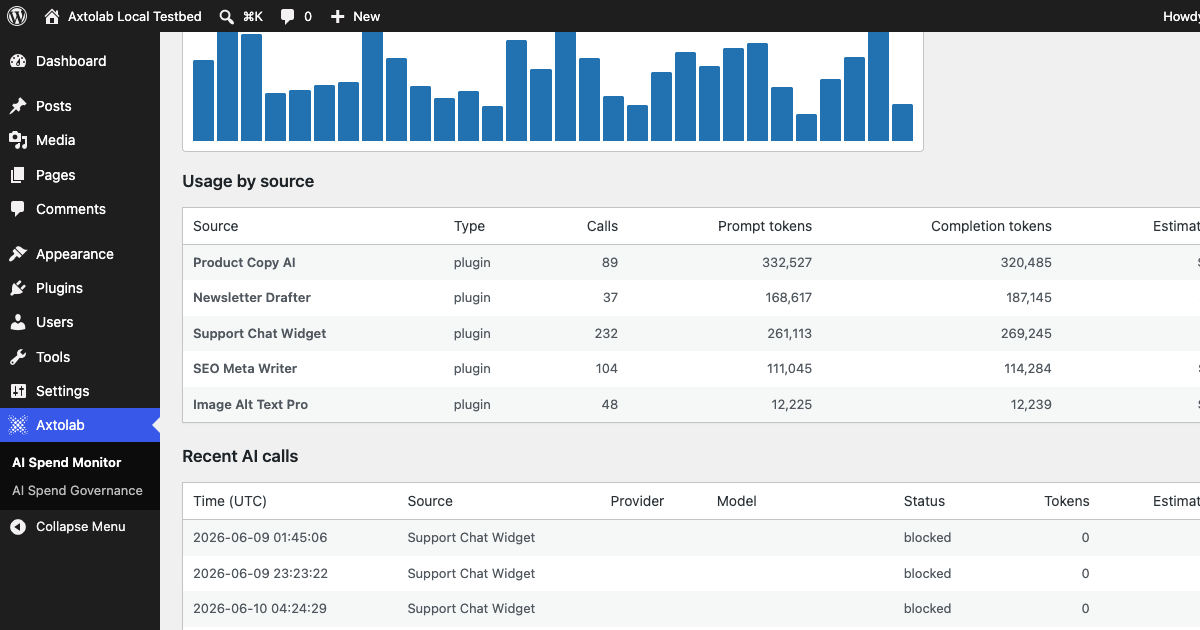
Then remove the test budget.
If blocking does not trigger
Check:
- The Governance license is active (Axtolab → AI Spend Governance).
- The free AI Spend Monitor plugin is installed and active.
- The plugin you are testing uses the WordPress 7.0 native AI Client (plugins that call providers directly with their own API keys are outside scope).
- Month-to-date spend has actually crossed the configured budget.
- Hard stop is enabled, not warning-only mode.
Monthly review
Budgets reset on the first of each month (UTC). A short monthly habit: open the Monitor dashboard, compare estimated spend against your provider invoice, adjust per-plugin budgets for any new AI plugins that appeared, and prune budgets for plugins you removed.
Question about this page?
This form tags your question with the product, docs page, and category so support can triage it quickly.